CODAROQ WORKSPACE · FREE WORDPRESS PLUGIN
Your team’s knowledge, decisions and work. Together in WordPress.
Keep your team’s pages, tasks, meetings and decisions in a workspace on your own WordPress website. Give people access to shared work while keeping private content private.
Version 1.0.3 · Free and self-hosted · WordPress 6.9+ · PHP 7.4+
Download Codaroq Workspace free · Installation · Work through MCP · Questions
A place for the work that belongs together
- Knowledge and documents: keep team information in pages and follow changes through their revision history.
- Tasks and deadlines: move work through a board, assign responsibility and see upcoming dates.
- Structured information: organize records with fields and views that suit the team’s workflow.
- Meetings and decisions: connect minutes, action items and recorded votes so your team can follow what was decided.
- Shared and private work: use WordPress identities and explicit workspace membership. An unrelated website administrator does not automatically become a team member.
Workspace is a separate collaboration plugin. Your existing Codaroq Agent Center continues to manage agent work.
See your work clearly
Six saved database views: table, board, calendar, list, gallery and timeline. The images below show the actual 1.0.2 interface with example content.

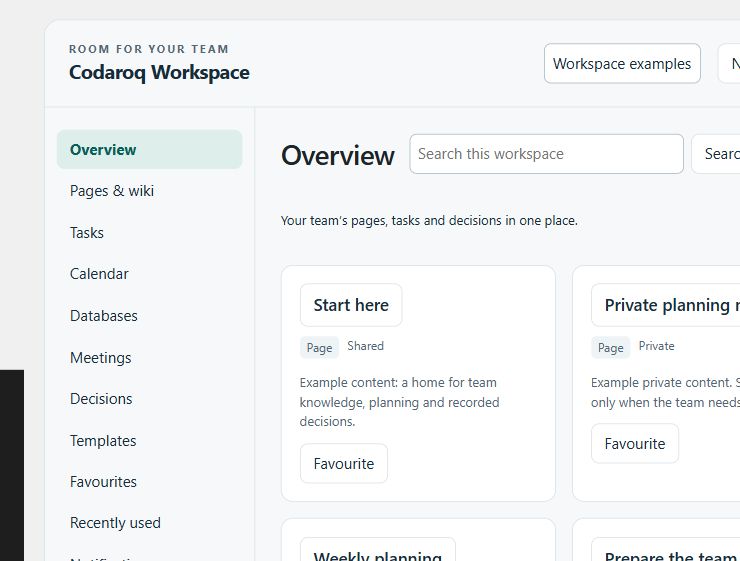
Free without a team-size meter
Workspace has no licence key, paid seat count or artificial limits on teams, boards or documents. Your website’s storage and server capacity determine the practical capacity.
Install on your WordPress website
- Back up your website and check the WordPress and PHP requirements in the current release notes.
- Download the official Workspace ZIP above. In WordPress, open Plugins → Add New → Upload Plugin, choose the ZIP and install it.
- Activate Codaroq Workspace and open Workspace in the WordPress menu.
- Create your workspace, add your team and choose the right visibility for each item.
Official updates use signed release metadata and verified package bytes. Keep a full website and database backup before updating. Deactivation retains data; restore a backup when recovering content. Read the installation, permissions and recovery guide.
Use your workspace from a compatible AI client
Install Codaroq MCP Core alongside Workspace and connect to your own website’s endpoint. Authorize the Workspace permissions you need, using your own WordPress account. Workspace tools enforce the same team and object rights as the interface.
Example request for a connected client:
In our management workspace, create shared minutes for the next meeting, add three preparation tasks with their due dates, and show me the result. Keep my private notes private.
Review the target workspace and resulting items in the interface. Read the MCP setup guide for connecting a compatible OAuth client. Workspace integration requires MCP Core 1.6.3 or later. Choose workspace.read, workspace.write and workspace.manage only as needed. Read the Workspace user guide (English and German) for typed tools, permissions, imports and recovery.
Questions
Do I need a paid Codaroq licence?
No. Workspace is free. The Workspace integration is intended for the free MCP Core connection; paid website-management editions are separate.
Where does our data live?
Workspace content is stored in your WordPress installation. A connected AI client receives the data involved in the requests you authorize.
Can an administrator read every private workspace?
Workspace access requires membership and the corresponding object rights. The WordPress administrator role alone is not a workspace membership grant.
Can we keep using Workspace without AI?
Yes. The WordPress interface works independently of an MCP client. Hosting and any AI-client subscription or usage are separate services.
What should we do before an update?
Keep a restorable website backup. Check the release notes, apply the update and verify your team data and workflows. Deactivating Workspace retains its data.
Get support · Source and project
Import, export and privacy
Review imports before applying them. JSON and CSV imports create private drafts and remap related items. Match separately downloaded attachments by filename and SHA-256 before importing. Markdown and ICS support their corresponding document and calendar workflows.
Structured exports respect current access and include file metadata rather than private file bytes. They are not a full site backup. Personal exports are limited to your own currently accessible content; erasure keeps shared records and audit history where retention is required.
Safety limits apply per request: private files up to 5 MiB, reviewed imports up to 100 objects. These controls do not impose paid seats or a team-size cap.